Ubuntu Combobox#
|
|
Let's start with our old faithful - it shouldn't hold any surprises, just kidding.
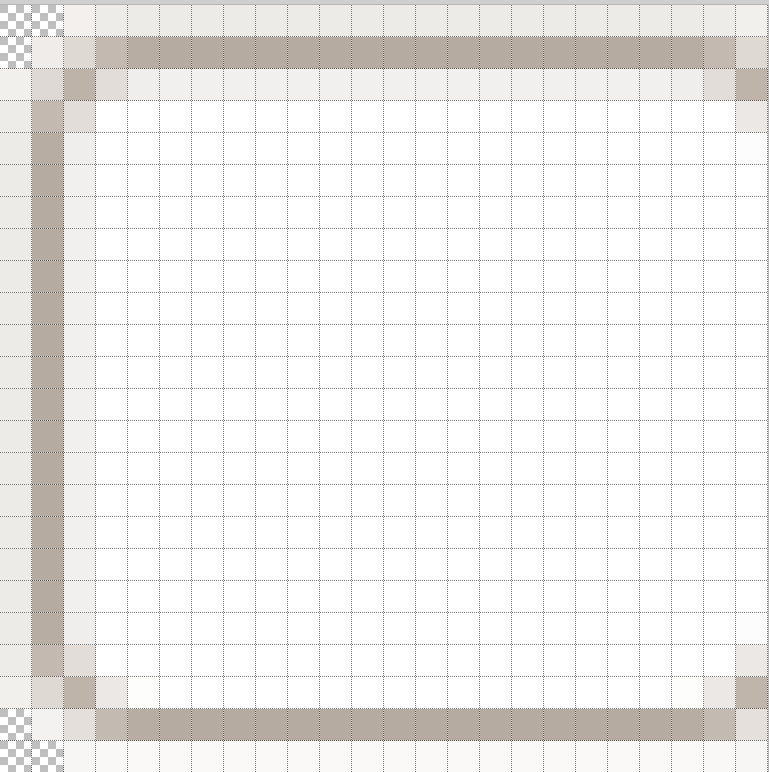
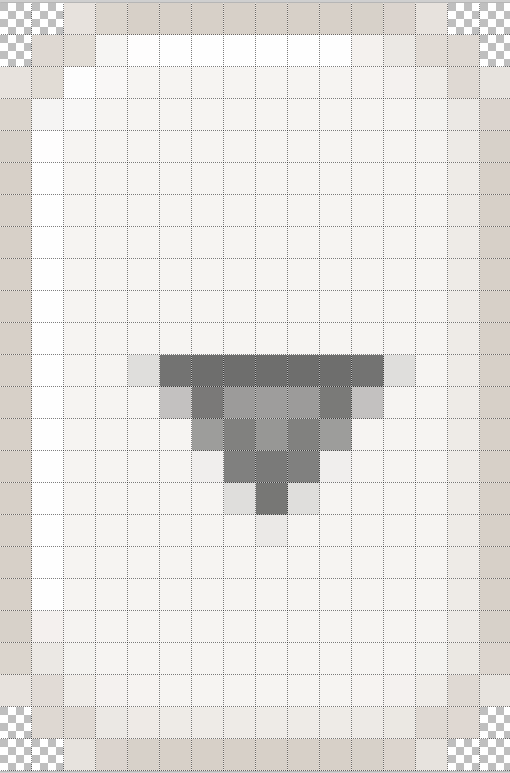
Load comboarrow-n.png and combo-n.png into our image editor. This gives us the sizes, layout and main colours without too much trouble. We are going to create two files based on 08rounded_rectangle.py and 08rounded_rectangle_both.py.
If we tackle combo-n.png first, left and right sides seem to be mirror images, just that the righthand side seems to have two columns cropped. The next question is whether the surrounding border consists of one, two or three frames. If three then we would see a shadow on the fourth row. We probably have a dark and a light frame, the shadow and highlight at the third column and row we can add by hand. Next check that the central area is all one colour - since this is the text area this is not surprising. There are two areas of transparency at the uncropped corners.
The widget is 26 wide x 24 high (allowing for cropping, the outer and inner
frames are #EDEBE7, #B6ABA0 whilst the central area is white. (The first
attempt used 2 pieslices, only joining the inner border). It looks alright
so let's reduce the image size img = img.resize((w,h),Image.LANCZOS).
Looking at the result the corner definitely needs modification, the transparent
area is way too large, and the outer antialias pixels have an alpha content
that the original did not have.
Original |
1st Attempt |
|
|
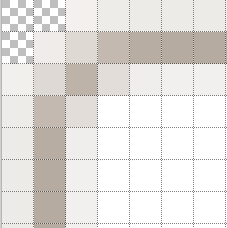
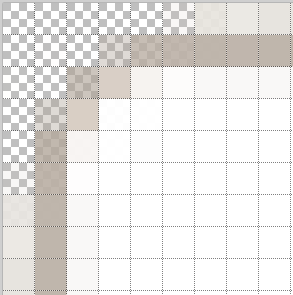
The outer frame needs to be joined by an arc this will reduce the background coloured corner area. Change the corner background to white seems a safe bet. We are going to modify the corner to have 3 pieslices.
2nd attempt |
3rd attempt |
just frame |
4th attempt |
|
|
|
|
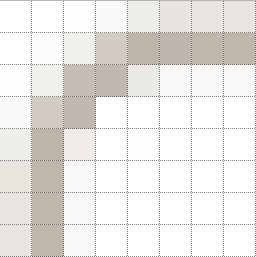
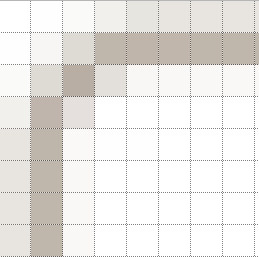
Look at the 2nd attempt - it's better but something is still not right, the original has a straight diagonal ours kinks outwards, this was hidden by the alpha problem. Reduce the gap from 5 to 4 and run again. (I saved the output to a new image).
Look at the colour. When the filter is applied we know that colour is changed, the frame becomes lighter and the adjacent pixels become darker, the question is can we estimate by how much.
Checking combo-n.png again we see that there are two adjacent rows of lighter colour beside the upper and lefthand part of the frame. Let's try adding both these colours to the frame colour, then draw the darkened frame using a white background. Outer colour (237,235,231), inner colour (242,240, 239) and frame colour (182,171,160) would give a start colour (151,136,120).
Using just the frame with no outer frame left too many white pixels in the corner, but all is not lost since we now have a frame colour that is too dark. This simplifies finding the frame start colour.
All we need do now is make the corner near white pixels transparent, whiten the righthand and bottom inner sides and crop the righthand side. As you can see these actions have been left until after the image is resized.

Constructed Combo#
Now for comboarrow-n.png, it has a main frame along the sides, the corners have a diagonal that bulges outward. There are highlights along the upper and lefthand sides, the other two sides are shaded. The main area has a single background colour, which helps in assessing what the starting frame colour was. Lastly we have a downward pointing arrow, which we have already made, even the antialias pixels.
Based on the script 08rounded_rectangle.py we should be able to create the frame, then set the arrow, place the transparent corner elements and draw the highlights. Using a simple border the gap size should be 5. The inner area is (246,244,242), the righthand shadow is (238,235,231) and the frame is (215,208,200). We can therefore guess that the frame starting colour should be (207,199,189).
The resulting rectangle looks good, but the final frame colour is not quite right, which is not too surprising as we were using a different frame colour to that found in combo, let's use that one. The result is slightly out, but within reason. Add the arrow, make the near white corner pixels transparent and add the highlights.

Constructed Comboarrow#
Afterwards compare the two widgets.
Show/Hide Code 09compare_combobox.py
'''
Create theme extract for custom widgets, need state selection to compare
different themes. Both widgets almost same, but pil (lower one) has slightly
jagged edges around arrow.
'''

from tkinter import Tk, PhotoImage, StringVar
from tkinter.ttk import Style, Label, Radiobutton, Frame, Combobox

root = Tk()

fr = Frame(root)
fr.grid(column=0,row=0,sticky='nsew')

img1 = PhotoImage("combo-n", file='../images/combo-n.png')
img2 = PhotoImage("combo-p", file='../figures/09combo.png')
img9 = PhotoImage("comboarrow-n", file='../images/comboarrow-n.png')
img11 = PhotoImage("comboarrow-p", file='../figures/09comboarrow5.png')


style = Style()
# both theme_create and theme_settings worked
style.theme_create( "yummy", parent="clam", settings={
#style.theme_settings('default', {

     "Combobox.field": {"element create":
           ("image", 'combo-p',
                ('alternate',  'combo-n'),
                {'sticky': 'ew',  'border': [4]}
           )
        },
        "Combobox.downarrow": {"element create":
            ("image", 'comboarrow-p',
                 ('alternate','comboarrow-n'),
                 {'sticky': '','border': [1]}
             )
        }

     })

style.theme_use('yummy') # 'clam' 'yummy'
sv = StringVar()
widg = Combobox(fr,values=['ubuntu', 'banana', 'orange'])
widg.grid(column=0,row=10,padx=5,pady=5 )
sv.set('ubuntu')
sv1 = StringVar()
widg1 = Combobox(fr,values=['created with pil', 'banana', 'orange'])
widg1.grid(column=0,row=11,padx=5,pady=5,sticky='ns')
sv1.set('created with pil')
widg.state(['alternate'])

root.mainloop()
They compare well, if anything the comboarrow has a slightly darker frame, the arrow appears off centre so if we were to create from scratch, rather than copy it, it would be better to change the image width to 25, say, and run again.
Tip
Remember to click on the arrows of the two widgets.