Spinbox#
Spinbox is a late entry as it was not part of the original changeover to ttk. You will need Python 3.7 or later in order to see the results. In appearance it is similar to the Combobox, therefore similar strictures discovered in chapter 06 "So you want to roll your own" used for Combobox apply. In addition we need to have two arrows displaying. Let's see whether an existing theme has a good looking solution. We can use the script 06theme_notebook.py, the Spinbox has been used on the third tab "Sliders & Others".
Alt |
Clam |
Classic |
Default |
|
|
|
|
Keramik |
Plastik |
Ubuntu |
|
|
|
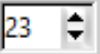
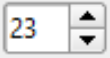
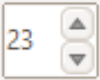
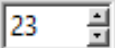
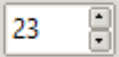
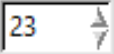
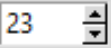
Comparing the standard themes with those from ttkthemes it should be noted that only keramik and plastik were the only ttkthemes to have a customised spinbox, others such as ubuntu relied on the parent theme. As a consequence see how the border adjusts to accommodate the large arrows in ubuntu. Without any customisation in lime it will inherit from clam, just as ubuntu did, and produce almost the identical result. The other point to note is how the themes treat the field around the numbers - adjust the numbers on the spinbox on all these themes. Plastik and classic themes win my approval, we have good feedback from plastik and interesting arrows in classic. A border around the arrows makes the widget look complete.
Using open borders, as used in the tabs on notebook, we should be able to create a good looking background for the arrows, which are smaller to those in combobox. The layout will be inherited from clam, as we have already tested in "So you want to roll your own" Customising Spinbox. If necessary increase the spinbox field height so that the arrows can be easily seen. First create the necessary background containers for the arrows, included is the image for the plastik buttons component. The sizes can be checked on 10lime_spinbox.py before the arrows are drawn.
Show/Hide Code 10spinbox.py
'''
Spinbox

Create theme extract for custom widgets, include state selection to view
the result of changing the state using different images and/or different
settings.
Spinbox states disabled, readonly; normal,pressed,active, disabled
'''

from PIL import Image, ImageOps
from tools import trans
from roundrect import Gr_Base_Rect

exp = 9 # enlargement, also thickness between rectangles

w= 15 # (26)arrow base 18
h= 14 # (32) overall height about 23 (58), so half 11 (29) + 3 for cropping

radius = 4 # gap size was 5

back = 'white' #(102,153,204)
second = '#5D9B90' # (222,247,222)
first = '#A3CCC4' # ~half of border
startc = (222,247,222)
stopc = (143,188,143)
fromc = (240,244,239) # used in tab-h and tab-p
toc = (229,255,229) # used in tab-h and tab-p
stoph = (216,255,216)
tab=1
fout = '../images/lime/arrspu-n.png'
fout2 = '../images/lime/arrspu-h.png'
fout3 = '../images/lime/arrspu-p.png'

Gr_Base_Rect(fout,w,h,exp,radius,first,second,startc,stopc,tab)

img = Image.open(fout)
dimg = img.convert('L')
#img = ImageOps.expand(img, border= (0,3,0,0), fill=(0,0,0,0))
ImageOps.crop(img,(0,0,0,3)).save(fout)
img.transpose(Image.ROTATE_180).save('../images/lime/arrspd-n.png')

img = Image.open(fout)

dimg = dimg.convert('RGBA')
trans(dimg,w,h,radius)

#dimg = ImageOps.expand(dimg, border= (0,3,0,0), fill=(0,0,0,0))
ImageOps.crop(dimg,(0,0,0,3)).save('../images/lime/arrspu-d.png')
dimg.transpose(Image.ROTATE_180).save('../images/lime/arrspd-d.png')

Gr_Base_Rect(fout2,w,h,exp,radius,first,second,fromc,toc,tab)
himg = Image.open(fout2)
himg.transpose(Image.ROTATE_180).save('../images/lime/arrspd-h.png')

Gr_Base_Rect(fout3,w,h,exp,radius,first,second,toc,stoph,tab)
pimg = Image.open(fout3)
pimg.transpose(Image.ROTATE_180).save('../images/lime/arrspd-p.png')

bimg = Image.new('RGBA', (w, h*2), '#FFFFFF00')
bimg.save('../images/lime/spinbut.png')
Now draw the arrows on the background containers.
Show/Hide Code 10spin_arrows.py
'''
create up and down arrows

lime spinbox arrs - used as background for arrows

'''

from PIL import Image, ImageDraw

light = 'GreenYellow'
med = 'LawnGreen'
border = '#5D9B90'
dark = '#878787'
pale = '#CECECE'

img = Image.open('../images/lime/arrspd-n.png')
width, height = img.size
draw = ImageDraw.Draw(img)
print(width,height)
mid = width//2

p1 = [2,1,width-3,1,mid,height-3,4,4]
p2 = [2,1,9,1,6,9,3,2]

# when setting up arrow use outline,
# adjust last point so that both slopes are mirror images
draw.polygon(p1, fill=border) # outline=border)
draw.polygon(p2, fill = light) # outline=light)

img.save('../images/lime/arrspd-n.png')
img.transpose(Image.FLIP_TOP_BOTTOM).save('../images/lime/arrspu-n.png')

pimg = Image.open('../images/lime/arrspd-p.png')
draw = ImageDraw.Draw(pimg)

draw.polygon(p1, fill=border) # outline=border)
draw.polygon(p2, fill = light) # outline=light)

pimg.save('../images/lime/arrspd-p.png')
pimg.transpose(Image.FLIP_TOP_BOTTOM).save('../images/lime/arrspu-p.png')

himg = Image.open('../images/lime/arrspd-h.png')
draw = ImageDraw.Draw(himg)

draw.polygon(p1, fill=border) # outline=border)
draw.polygon(p2, fill = light) # outline=light)

himg.save('../images/lime/arrspd-h.png')
himg.transpose(Image.FLIP_TOP_BOTTOM).save('../images/lime/arrspu-h.png')

dimg = Image.open('../images/lime/arrspd-d.png')
draw = ImageDraw.Draw(dimg)

draw.polygon(p1, fill=border) # outline=border)
draw.polygon(p2, fill = light) # outline=light)

dimg.save('../images/lime/arrspd-d.png')
dimg.transpose(Image.FLIP_TOP_BOTTOM).save('../images/lime/arrspu-d.png')
Test the results on 10lime_spinbox.py, add to lime_theme.py then check this on 10third_theme_note.py.
Note
Drawing matching arrow slopes is a little tricky, use the polygon outline to sort out the different slopes - but be warned changing to fill may create slightly different slopes.