

Colour your own#
How will a widget look when the style or theme is changed. Tkinter is rather forgiving so we can have a list with too many changeable elements and see just how they will react. Using this property we can see how and which elements affect our widget. This then simplifies our task when testing widgets, in that the Style.configure variables stay the same and only the widget is changed, and we still see the effect on the widget.
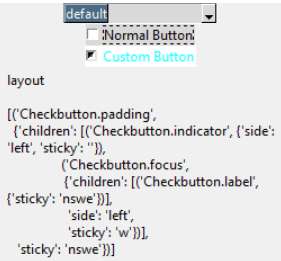
Look at the script for Checkbox Themes,
Checkbox themes#
Show/Hide Code 03checkbox_themes.py
'''
Using pprint we have an easier method to show the layout in a reasonable manner.

Configure has probably more colours than will be displayed, it will help show
which elements can be coloured, where they are situated. In this exercise use
colours that can be easily picked out rather than for final looks.
'''
from pprint import pformat
from tkinter import Tk, Message, font
from tkinter.ttk import Style, Combobox, Checkbutton

def theme_changed(theme):
    style.theme_use(theme)

    lay = style.layout(tWidg)

    ppout = pformat(lay)

    style.configure(
        'Custom.' + tWidg,
        background='#FFFFFF', # White
        bordercolor='#00FF00', # Green
        lightcolor='#FF0000', # Red
        darkcolor='#0000FF', # Blue
        borderwidth=4,
        foreground='#00FFFF', # Cyan
        fieldbackground='#FF00FF', # Magenta
        troughcolor='#FFFF00', # Yellow
        arrowcolor='#A52A2A', # brown
        focuscolor='#40E0D0' # turquoise
    )
    return ppout

root = Tk()
style = Style()
tWidg = 'TCheckbutton'
combo = Combobox(root, values=sorted(style.theme_names()), state='readonly')
combo.set(style.theme_use())
combo.bind('<<ComboboxSelected>>', lambda _e: theme_changed(combo.get()))
combo.pack()

out = theme_changed(style.theme_use())

button = Checkbutton(root, text="Normal Button")
button.pack()

button = Checkbutton(root, style="Custom." + tWidg, text="Custom Button")
button.pack()

test_size = font.Font(family="Times", size=12, weight="bold").measure('Test')
mult = int(test_size / 30)

mess = Message(root, text='layout \n\n'+out, width=250*mult)
mess.pack()

root.mainloop()
As you can see not only do we have an excess of element names, but we can also display the layout of the widget and change the theme. Remember a widget is affected both by changing the theme and its element colours. A second widget is run in parallel where its configuration is not changed but it changes with the theme.
A further improvement can be made by using tkinter's Text so that the name and its colour representation can be made in one line.
combobox themes#

Tip
The image was created using the default theme, if in Windows or Mac do not forget to change the theme.
In 03combobox_text_themes.py we have a dictionary of element_options containing a list of elements with their options, colour, size and font, these are then listed in style configure and can then be added to the Text widget so that we display each element with its colour option as a hash value and a rectangle of colour.
Almost all the elements react as expected, as Combobox is derived from entry and listbox widgets font would normally be changed by the font attribute rather than through style. 03combobox_text_themes.py has a special method that allows style to change font - whether it is required or not depends on the application.
Show/Hide Code 03combobox_text_themes.py
'''
combobox change font

# https://stackoverflow.com/questions/43086378/how-to-modify-ttk-combobox-fonts
# thanks to CommonSense

Using the widget Text to display the customised colours, their hash
representation and to which element they have been assigned. The combobox font
cannot be easily modified with style, hence the element_options used with a CustomBox
(modified combobox). The alternative is to use option_add.
'''

from pprint import pformat
from tkinter import Tk, Message, Text
from tkinter.ttk import Style, Combobox, Button, Separator, Frame, Label

def theme_changed(theme):
    style.theme_use(theme)

    lay = style.layout(tWidg)
    ppout = pformat(lay)

    style.configure(
        'Custom.' + tWidg,
        arrowcolor = element_options['arrowcolor'],
            background = element_options['background'],
            bordercolor = element_options['bordercolor'],
            darkcolor = element_options['darkcolor'],
            fieldbackground = element_options['fieldbackground'],
            foreground = element_options['foreground'],
            focuscolor = element_options['focuscolor'],
            highlightcolor = element_options['highlightcolor'],
            indicatorcolor = element_options['indicatorcolor'],
            itemaccentfill = element_options['itemaccentfill'],
            itemfill = element_options['itemfill'],
            lightcolor = element_options['lightcolor'],
            selectbackground = element_options['selectbackground'],
            selectforeground = element_options['selectforeground'],
            stripebackground = element_options['stripebackground'],
            troughborder = element_options['troughborder'],
            troughcolor = element_options['troughcolor'],
            relief = element_options['relief'],
            shiftrelief = element_options['shiftrelief'],
            borderwidth = element_options['borderwidth'],
            selectborderwidth = element_options['selectborderwidth'],
            gripcount = element_options['gripcount'],
            highlightthickness = element_options['highlightthickness'],
            sashthickness = element_options['sashthickness'],
            width = element_options['width'],
            font = element_options['font']
    )
    #print (ppout)
    #return ppout


element_options = {
                'arrowcolor': '#FF2222', 'background': '#FFFF00',
                'bordercolor': '#00FFFF', 'checklight': '#40E0D0',
                'darkcolor': '#440044',
                'fieldbackground': '#FFAAAA',
                'foreground': '#884444', 'focuscolor': '#880088',
                'highlightcolor' : '#D8FFD8',
                'indicatorcolor': '#51FF51',
                'itemaccentfill': '#ffff77', 'itemfill': '#dddd77',
                'lightcolor': '#FF0000',
                'selectbackground': '#C1FFC1',
                'selectforeground': '#FF4400',
                'stripebackground': '#bbbb77',
                'text': '#228822',
                'troughborder': '#226622', 'troughcolor': '#FFCCCC',
                'relief': 'groove',
                'shiftrelief': 4,
                'borderwidth': 4,
                'selectborderwidth': 5, 'gripcount': 10,
                'highlightthickness': 5,
                'sashthickness': 10, 'width': 20, 'font': 'Gigi 12'}

root = Tk()
#try:
    #import ttkthemes as ts
    #style = ts.themed_style.ThemedStyle()
#except (NameError, AttributeError):
    #style = Style()
style = Style()
tWidg = 'TCombobox'


class CustomBox(Combobox):
    def __init__(self, *args, **kwargs):
        #   initialisation of the combobox entry
        super().__init__(*args, **kwargs)
        #   "initialisation" of the combobox popdown
        self._handle_popdown_font()

    def _handle_popdown_font(self):
        """ Handle popdown font
        Note: https://github.com/nomad-software/tcltk/blob/master/dist/library/
        ttk/combobox.tcl#L270
        """
        #   grab (create a new one or get existing) popdown
        popdown = self.tk.eval('ttk::combobox::PopdownWindow %s' % self)
        #   configure popdown font
        self.tk.call('%s.f.l' % popdown, 'configure', '-font', self['font'])

    def configure(self, cnf=None, **kw):
        """Configure resources of a widget. Overridden!

        The values for resources are specified as keyword
        arguments. To get an overview about
        the allowed keyword arguments call the method keys.
        """

        #   default configure behavior
        self._configure('configure', cnf, kw)
        #   if font was configured - configure font for popdown as well
        if 'font' in kw or 'font' in cnf:
            self._handle_popdown_font()

    #   keep overridden shortcut
    config = configure

fra = Frame(root, height=150, width=100)
fra.grid(row=0, column=1, padx=5, pady=5)

tex = Text(root, relief='sunken', height=30, width=30, bg='#FFFFBB')
tex.grid(row=0, column=0, sticky='ns', padx=5, pady=5)
step = 0
for key, value in element_options.items():
    st = str(step+1)+'.19'
    st_end = str(step+1)+'.28'
    if str(value)[0] == '#':
        tex.tag_add(('theme'+str(step)), st, st_end)
        tex.tag_configure(('theme'+str(step)), background=str(value),
				relief= 'raised')
        tex.insert('insert', '{:<16} {} '.format(key,value))
        tex.insert('end','    \n',('theme'+str(step)))
    else:
        if str(key) in ('font'):
            tex.tag_add(('theme'+str(step)), st, st_end)
            tex.tag_configure(('theme'+str(step)), font=str(value))
            tex.insert('insert', '{:<10} {} '.format(key,value))
            tex.insert('end','Font\n','theme'+str(step))
        else:
            tex.insert('end', '{:<16} {}\n'.format(key,value))
    step = step + 1


combo = Combobox(fra, values=sorted(style.theme_names()), state='readonly')
combo.set(style.theme_use())
combo.bind('<<ComboboxSelected>>', lambda _e: theme_changed(combo.get()))
#print(theme_changed(combo.get()))
combo.grid(row=0, column=1, padx=5, pady=5,sticky='ne')

out = theme_changed(style.theme_use())

lab1 = Label(fra, text='Choose Theme ▶')
lab1.grid(row=0, column=0, padx=5, pady=5)

sep = Separator(fra, orient='horizontal')
sep.grid(row=1, column=1, padx=5, pady=5, sticky='ew')

combo1 = Combobox(fra, values=("Apple","Orange","Melon"))
combo1.grid(row=2, column=1, padx=5, pady=5,sticky='ne')
combo1.set('Apple')

lab2 = Label(fra, text='Normal Widget ▶')
lab2.grid(row=2, column=0, padx=5, pady=5)

'''
# try uncommenting these lines, and comment out the cb lines following
combo2 = Combobox(fra, style="Custom." + tWidg, values=("Milk","Water","Juice"))
combo2.grid(row=3, column=0, padx=5, pady=5)
combo2.option_add('*TCombobox*Listbox.font', element_options['font'])
combo2.set('Milk')
# this affects all comboboxes
'''
cb = CustomBox(fra, font=element_options['font'], style="Custom." + tWidg,
                      values=("Milk","Water","Juice"))
cb.grid(row=3, column=1, padx=5, pady=5,sticky='ne')
cb.set('Milk')
#print("Custom." + tWidg)

lab3 = Label(fra, text='Widget with Style ▶')
lab3.grid(row=3, column=0, padx=5, pady=5)
lab4 = Label(fra, text='Widget Layout ▼')
lab4.grid(row=4, column=0, padx=5, pady=5)

mess = Message(fra, text=out, width=700)
mess.grid(row=5, column=0, padx=5, pady=5, sticky = 'news')

root.mainloop()
When using font we can refer to each instance of the font directly - such as 'Helvetica 12 Bold' - or we can use the generic names used by Tk,
Tk Standard |
Font Description |
|---|---|
TkDefaultFont |
The default for all GUI items not otherwise specified. |
TkTextFont |
Used for entry widgets, list boxes, etc. |
TkFixedFont |
A standard fixed-width font. |
TkMenuFont |
The font used for menu items. |
TkHeadingFont |
The font typically used for column headings in lists and tables. |
TkCaptionFont |
A font for window and dialog caption bars. |
TkSmallCaptionFont |
A smaller caption font for subwindows or tool dialogs |
TkIconFont |
A font for icon captions. |
TkTooltipFont |
A font for tooltips |
which has the advantage that they are compatible to all operating systems, and no special precautions should be necessary. If you do use custom fonts obviously check on their availability on other os - maybe easier said than done.